
Automation Framework Configuration with Jenkins and Important of Jenkins in Automation Testing
Jenkins
How to download jenkins
Download jenkins (Download war file jenkins.war)
from link- click here to downlaod
Open cmd and add your jenkins address or Open path of your jenkins and open cmd
Enter java -jar jenkins.war in cmd
Wait until ‘Jenkins is fully up and running’ status display in cmd
Open browser and add URL like: ‘localhost:8080’
Register with valid Email Id and Download Plugins
Setup Jenkins with Maven and Java jar file path and add all plugins.

How to setup Project in Jenkins
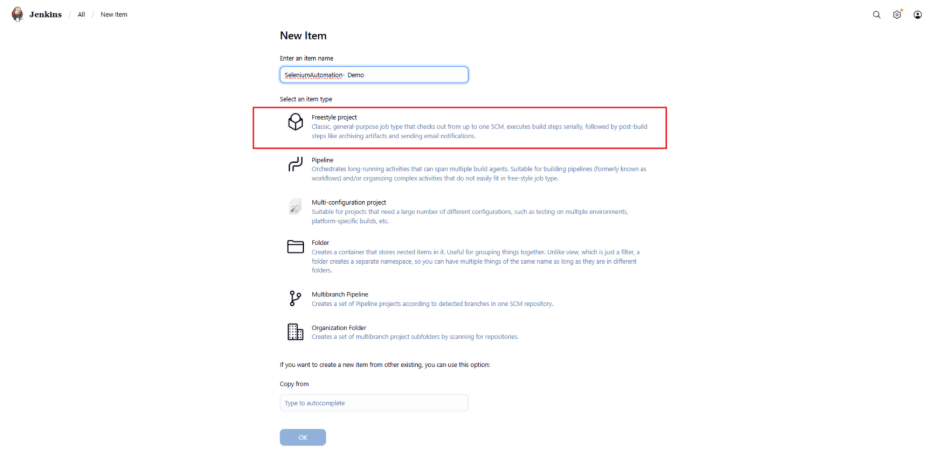
1.Go to Jenkins home (http://localhost:8080/), Click on "New item" from left side panel, enter item name, select Maven Project/Freestyle Project as below and click on "Ok" button.
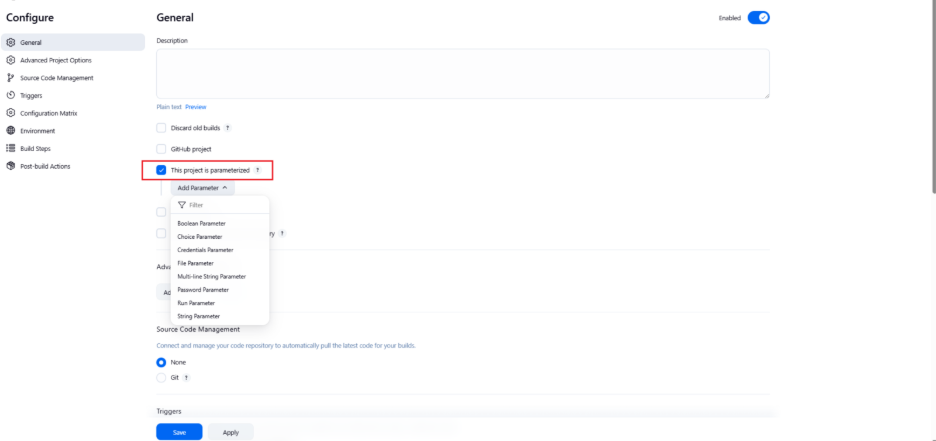
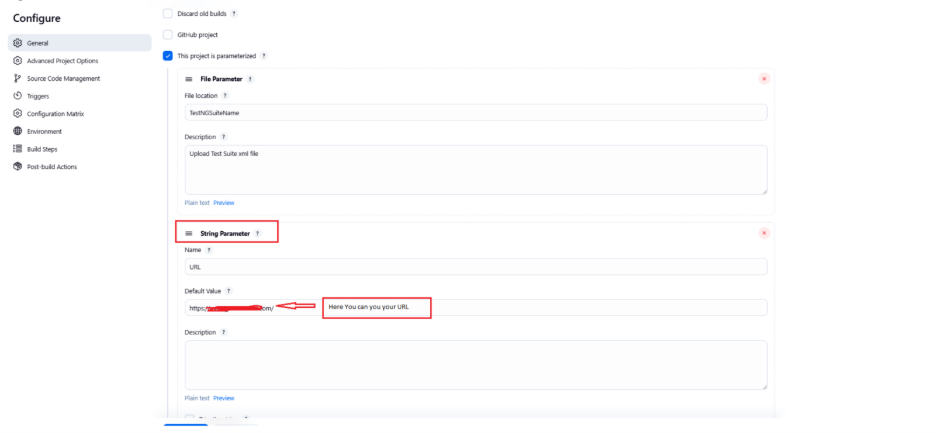
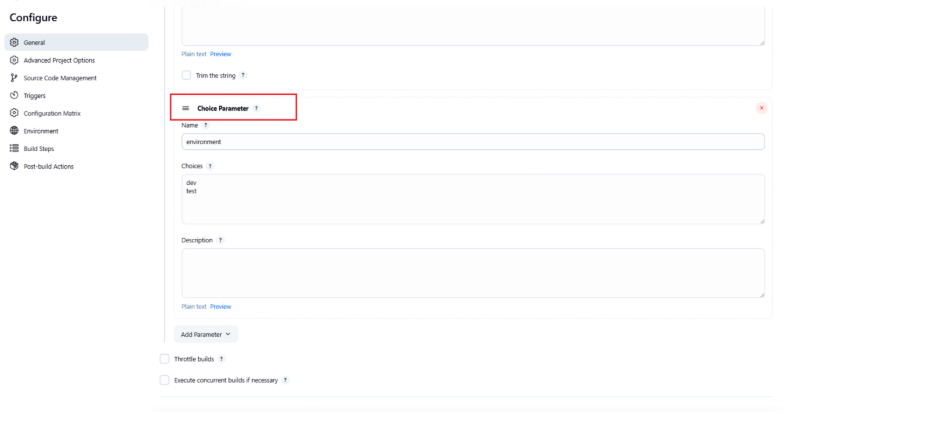
Go to the "General" section from Configure, Check ‘This project is parameterized’ checkbox, Add Choice parameter from ‘Add Parameter’ drop down as below.
Path: Click on Project name > Click on Configure
Choice Parameter: Select value from Dropdown
String Parameter: Pass string value
File Parameter: Select File from file explorer
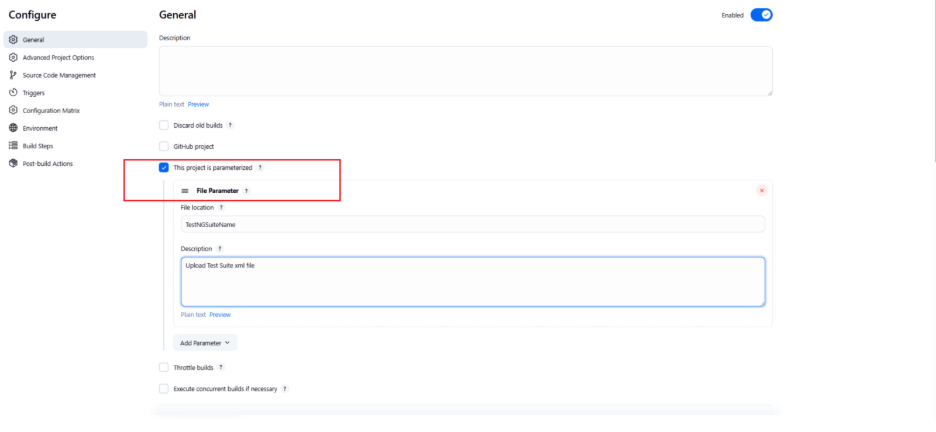
Once you add File Parameter, then set parameter value as below.
You can also add String Parameter then set Value as below.
You can also add Choice Parameter then set Value as below.
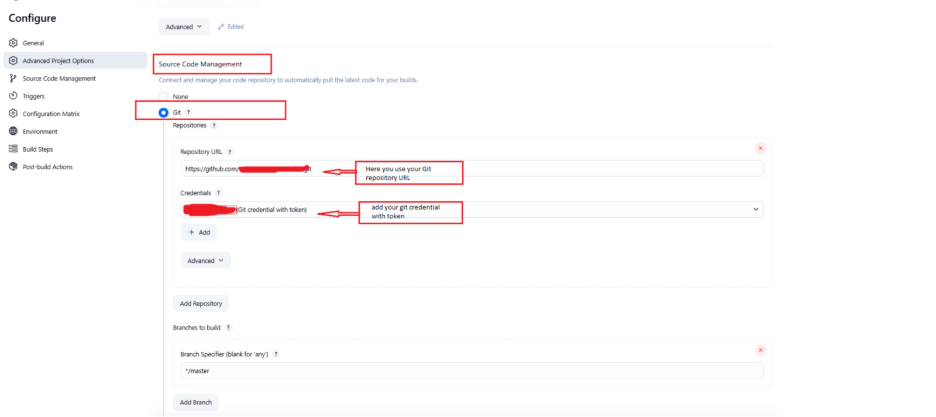
2.Go to "Source Code Management" section, Select Git, Enter Git URL and credentials below.
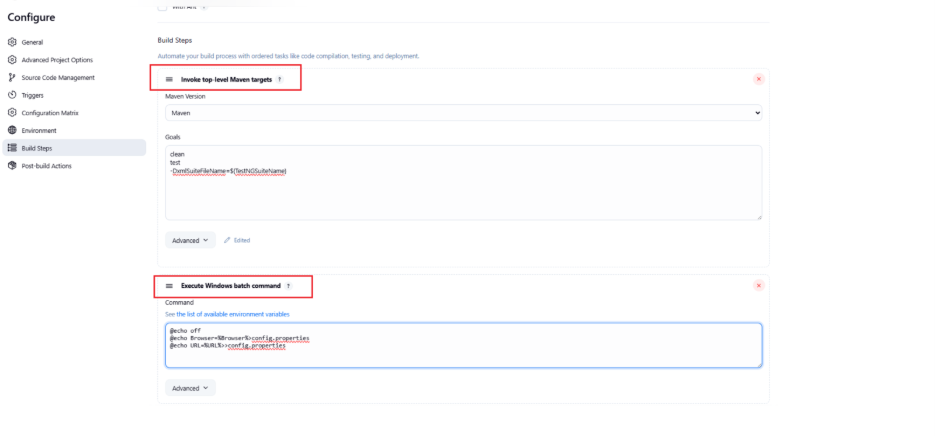
3.Go to "Build" Section set Execute Window Batch Command as below and Invoke top-level Maven targets
Command:
@echo off
@echo Browser=%Browser%>config.properties
@echo URL=%URL%>>config. Properties
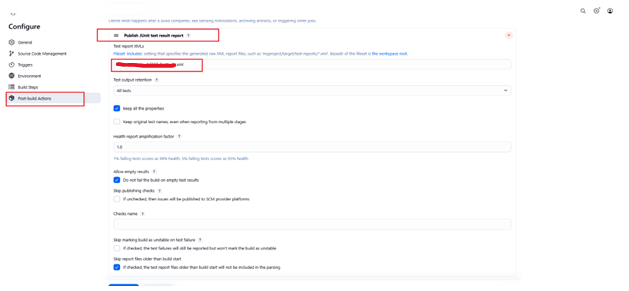
4. Go to "Post-build Actions" Section and add "Publish JUnit test result Reports" section as shown below:
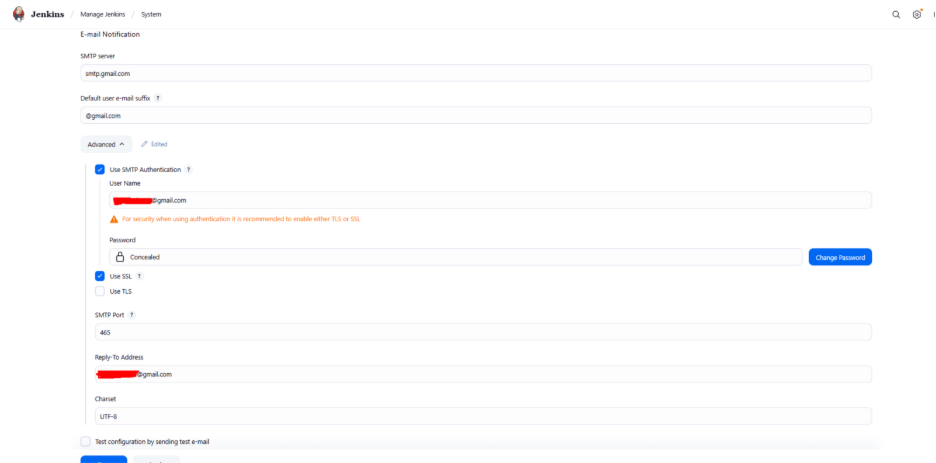
First to set up email notification you must have to do system configuration from Manage Jenkins > System > E-mail Notification as below:
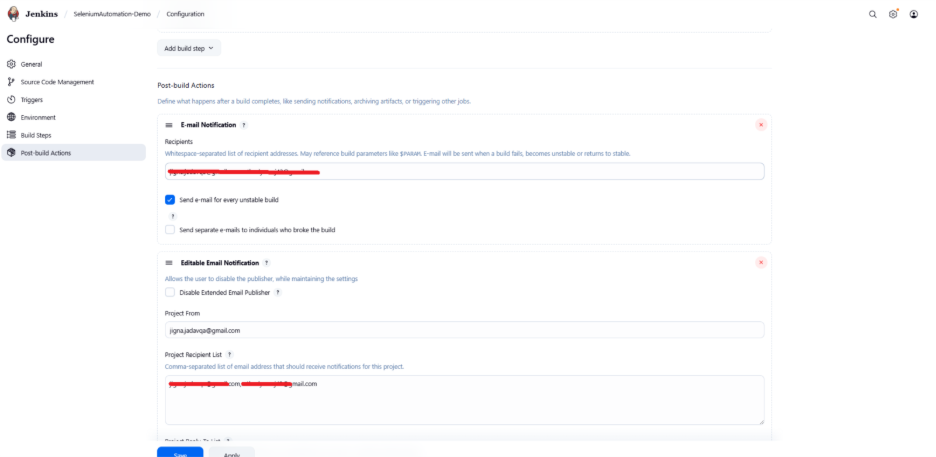
5. Go to the "Post-build Actions" Section and add the " E-mail Notification "
To receive mail whenever your build is triggered and do setup as bellow. In the Recipients section you can add multiple emails with a Whitespace-separated list of recipient addresses.
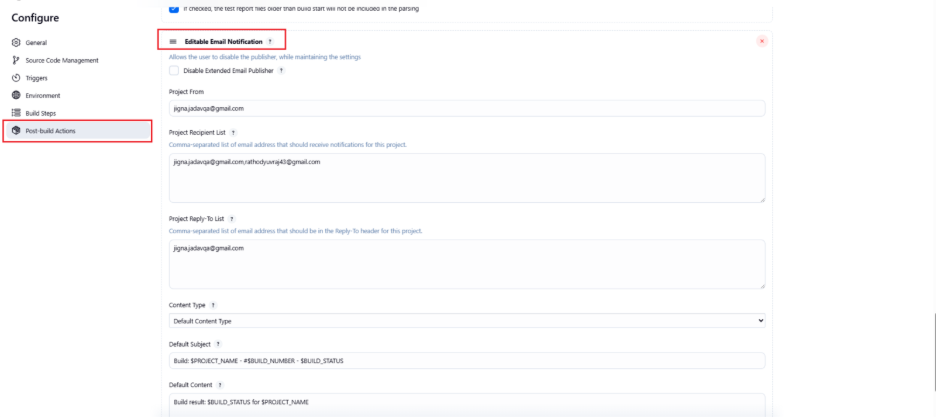
Then again to the "Post-build Actions" Section and add the " Editable Email Notification "
To receive mail whenever your build is triggered and do setup as below:
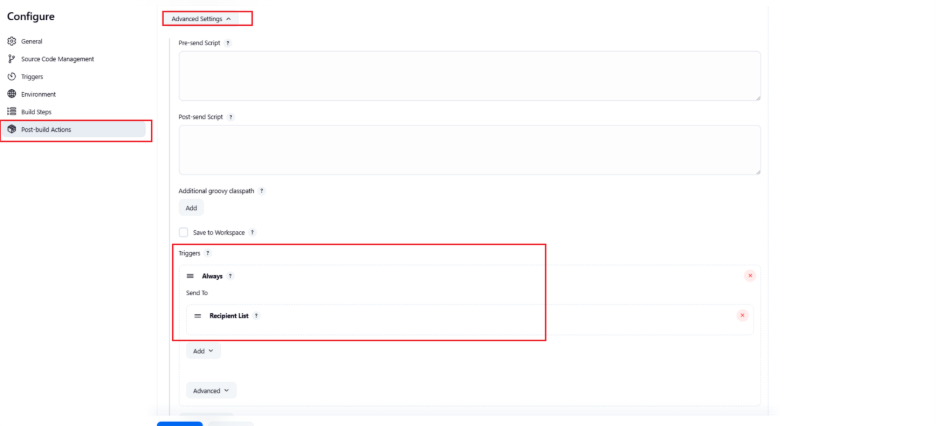
6.Go to "Post-build Actions" Section and add " Editable Email Notification. Click on “Advance Setting “Click on "Add Trigger"
For e-mail notification set advanced part as below:
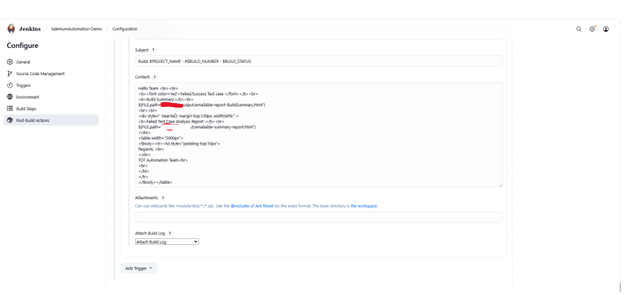
Content
Hello Team <br><br>

<strong>Failed/Success Test case</strong><br>

<strong>Build Summary:</strong><br>

${FILE,path="DemoProject/test-output/emailable-report-BuildSummary.html"}

<br><br>

<div style=" clear:lession; margin-top:130px; width:60%;" >

<strong>Failed Test Case Analysis Report :</strong><br>

${FILE,path="CENA/test-output/emailable-summary-report.html"}

</div>

<table width="2000px">

<tbody><tr><td style="padding-top:10px">

Regards, <br>

</div>Automation Team<br>

<br>

</td>

</tr>

</tbody></table>
HOW TO RUN PROJECT AND GET REPORT
Prerequisites: Jenkins should be up and running.
Open URL: http://localhost:8080
Click on previously created project.
1.Click on "Build with Parameters" link from left side panel
After run build output report show as below:
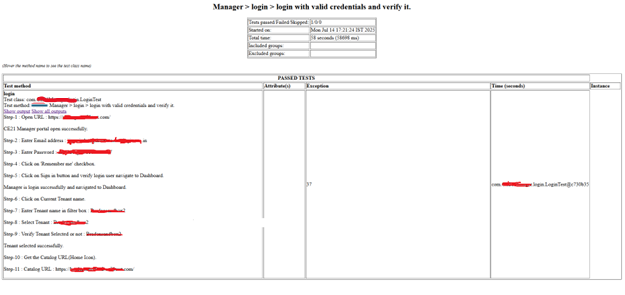
Emailable reports shows as below,
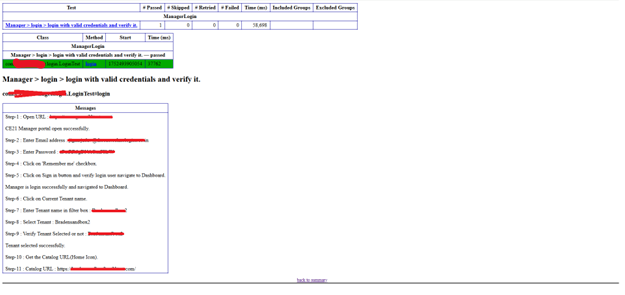
Then choose your file and click on Build Button and check in Console Output section you see the result of your builds.
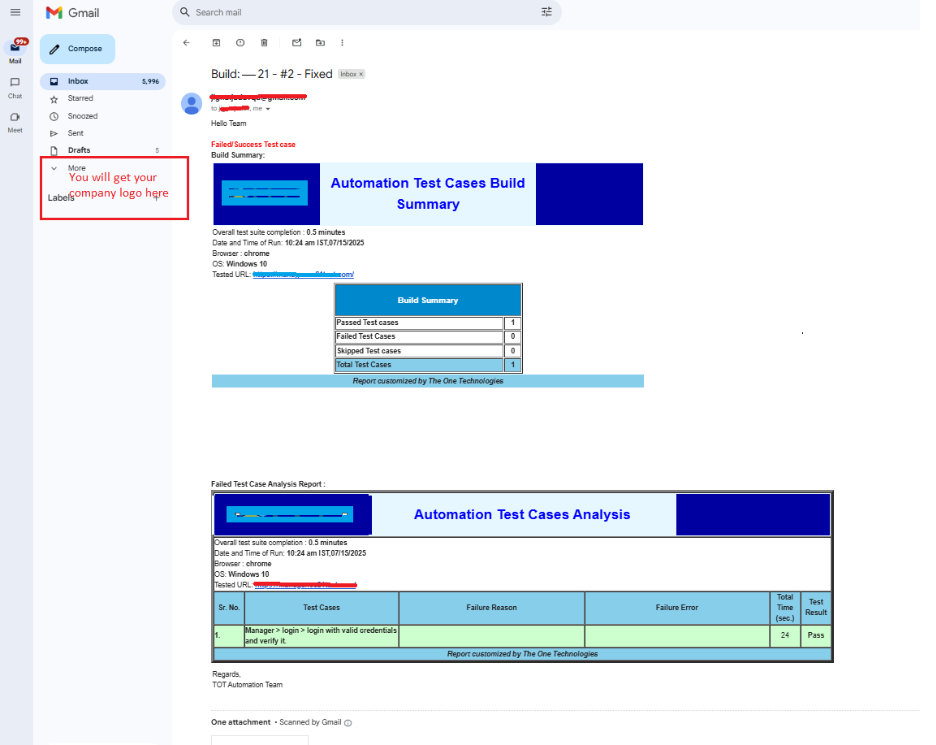
Once the Script get Executed you will get email as below
- Total Number of Test Cases run
- Total Number of Pass/Fail Test Cases
- Total Number of Skipped Test Cases
- Test Case Analysis with Test Case Name, Failure Reason, Failure Error, Time taken to execute
- Individual Test Case and Test Result
Once your build executed trigger email notification sent on set mail ids
Importance of Jenkins Configuration for Automation Testing
Constant integration (CI): Jenkins enables uninterrupted CI, allowing automatic testing execution after each code, which ensures to detect the initial bug.
Pipeline automation: Proper configuration helps define and manage complex testing pipelines, reduces manual intervention and increases efficiency.
Scalability: Jenkins supports the testing distributed in many environment, which is important for a growing software testing company handling large projects.
Tool Integration: Jenkins integrates with various testing devices (such as Selenium, Junit, Testong), which makes it a central center for the software testing service provider.
Reporting and response: Automatic test reports and real -time response teams help quickly address issues, improves software quality.
Scheduling and trigger: The Jenkins allows them to trigger the test run based on scheduling or events, ensuring the timely verification of the build.
Read More
Choosing the right automation tool can impact your testing efficiency—explore the strengths, limitations, and use cases of top frameworks. Teams facing similar quality risks often use software test automation services to validate these areas before release.
Selenium vs Appium Comparison Guide
About Author

I am Yuvraj Rathod, an automation testing enthusiast with hands-on experience in designing and executing robust test automation frameworks using Java, Selenium WebDriver, and TestNG. I specialize in streamlining QA processes, enhancing test coverage, and ensuring high-quality software delivery. Passionate about continuous learning and staying updated with the latest testing tools and practices.